¶ Saladict User Manual
Download the latest version.
¶ Open the extension settings
You can open the settings in any of these ways:
- Right-click the Saladict icon next to the address bar and select
Options. - Find Saladict on your browser’s extension management page and select
Options. - Click the menu icon on the lookup panel’s green toolbar.

¶ Use multiple dictionaries
Saladict includes a carefully selected collection of dictionaries covering a wide range of subjects, with each result formatted for readability.
Flexible dictionary settings are one of Saladict’s main features. Choosing only the dictionaries you need can speed up searches and make results easier to read. Dictionary APIs are generally stable, though an incompatible update may occasionally cause problems. Please report any issues.
¶ Play pronunciations automatically
- Open the extension settings.
- Configure automatic pronunciation separately for Chinese and English.
- For English, choose whether you prefer British or American pronunciation. Dictionaries that support your preferred accent will use it first.
¶ Customize each dictionary
- Open the extension settings.
- Open Dictionary Settings.
- Your changes appear in the preview on the right.
- Click Add to include another supported dictionary.
- Drag dictionaries to change their order.
- Click a dictionary to expand its settings.
- Disable Expand by Default to search a dictionary only when you open it manually. This can improve loading times for dictionaries you rarely use and avoid unnecessary requests to services with rate limits, such as Bilingual Sentences.
- Use Show for Chinese (English) Searches to display a dictionary only when the selected text contains the specified language. This saves space and can make searches faster.
- Default Height controls the initial height of the dictionary results. Longer results are collapsed to this height, with an arrow at the bottom for expanding them. Shorter results use only the space they need. If you prefer results to open at their full height, set this value to a large number.
- The remaining options vary by dictionary. Configure them as needed.
¶ Open pages from the context menu
Configure the context menu in Saladict’s settings. After selecting text on a page, right-click it to open the configured dictionary links.
You can also add custom links. Saladict replaces %s in a link with the selected text.
¶ Choose a text-selection lookup mode
Saladict supports several lookup modes to suit different reading habits. Its iframe selection support also works with embedded third-party pages of various sizes.
- Open the extension settings.
- Choose an option under Lookup Mode.
- When you select text on a web page:
- Show Icon displays an icon near the pointer. Hover over the icon to open the dictionary panel.
- Search Immediately opens the dictionary panel without showing the icon first.
- Double-click to Search opens the dictionary panel when you double-click to select text.
- After selecting this mode, you can adjust the maximum interval between clicks to match your double-click speed.
- Hold Ctrl/Command opens the dictionary panel only when you hold Ctrl or Command while selecting text.
- Hover Lookup automatically selects the text under the pointer.
You can configure separate lookup modes for a pinned panel and for text selected inside the panel.
¶ Use the single-line and multiline editors
In addition to the search box in the toolbar, Saladict provides a multiline editor. It is collapsed below the toolbar by default; click it to expand it.
You can customize when the multiline editor expands. Its behavior can vary between profiles.
Press Ctrl + Enter in the multiline editor to search.
¶ Loop sections of audio and change playback speed
Browsers normally change the pitch when audio playback speed changes. Enable Pitch Stretch to preserve the original pitch. The current audio library may produce noise in some browsers; disable Pitch Stretch if this happens.

¶ Pin and move the lookup panel

Click the pin icon on the lookup panel’s green toolbar to keep the panel open. A pinned panel remains visible until you click its x button.
Drag the empty area in the middle of the toolbar to move the panel.
You can configure three lookup modes for a pinned panel. See Choose a text-selection lookup mode.
¶ Create profiles for different situations
Each profile has its own independent settings. Saladict includes several preset profiles for common situations, and you can customize their lookup modes and other options to fit your workflow.
To switch profiles quickly, hover over the menu icon on the lookup panel. You can also focus the menu icon and press Down Arrow.
Configure profiles on the settings page.
¶ Configure keyboard shortcuts
All versions of Chrome support extension shortcuts. Open the menu in the upper-left corner of the extension management page, or go directly to chrome://extensions/shortcuts. Chrome automatically creates the Activate the Extension command for every extension. This is equivalent to clicking the extension icon next to the address bar and may not support a global shortcut.
Firefox has supported extension shortcuts since version 66. Open about:addons, click the gear icon near the top of the page, and select Manage Extension Shortcuts at the bottom of the menu.
Saladict also supports selecting text outside the browser and looking up text in images with OCR.
¶ Open Quick Search in a standalone window
Press Ctrl three times, or configure another shortcut, to open the Quick Search panel. It can read text from the clipboard and start the search automatically.
Quick Search opens in a standalone window by default, so a browser global shortcut can bring it up at any time.
Use the pin button in the toolbar to control whether the standalone window takes focus and moves to the front when a search starts. The window cannot stay permanently on top because browsers do not provide that capability.
You can configure Quick Search to respond when text is selected on the main page. To look up text selected outside the browser, see Configure keyboard shortcuts.
Enable sidebar mode in the settings to keep Quick Search beside your other content.
- Open the extension settings.
- Configure Quick Search.
- Choose what to load when the panel opens: Clipboard, Selected Text on Page, or None.
- Enable Search Automatically to start a search as soon as the panel opens.
- Use Window Position to choose from nine positions.
¶ Open Quick Search from the toolbar icon
For security reasons, Chrome prevents extensions from accessing certain pages, including the Chrome Web Store and pages belonging to other extensions.
On pages where text-selection lookup is unavailable, click the Saladict icon next to the address bar to open the lookup panel. Copy the text first for faster lookup.
- Open the extension settings.
- Configure Toolbar Popup.
- Choose what to load when the panel opens: Clipboard, Selected Text on Page, or None.
- Enable Search Automatically to start a search as soon as the panel opens.
¶ Manage your notebook and search history
Saladict can save words and record your lookup history. It also provides a management page and can create Anki cards automatically.

Uninstalling the extension or using a system cleanup tool may delete these records. Export them regularly or configure synchronization.
Browser sync storage has limited capacity, so Saladict uses it only for settings. Notebook synchronization must be configured separately. Saladict currently supports WebDAV services such as Nutstore and DropDAV.
You can open the notebook and history in either of these ways:
- Use the heart and clock icons on the lookup panel’s green toolbar. Left-click the heart to save a word, or right-click it to open the notebook page.
- Right-click the Saladict icon next to the address bar and select the relevant option.
In Saladict 6, clicking the heart icon displays the lookup and word-editing panels side by side by default. You can disable this behavior in the settings.

¶ Configure allowlists and blocklists
Configure allowlists and blocklists in the extension settings. Separate lists are available for PDF files, allowing you to enable or disable interception on specific sites. URLs support browser match patterns.
¶ Look up selected text in PDFs
For security reasons, extensions cannot access the browser’s built-in PDF viewer. Saladict therefore includes its own reader based on PDF.js.
By default, Saladict opens all PDF links in its reader, including local files when Allow access to file URLs is enabled. You can turn off PDF interception in the settings.
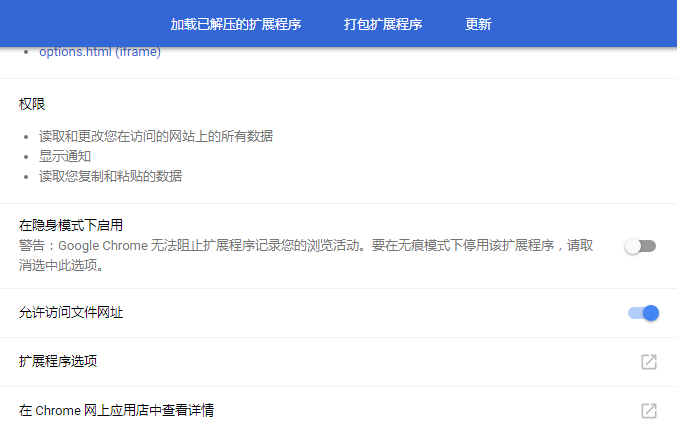
Firefox cannot currently intercept local file paths. Open Saladict’s PDF reader and use the button in the upper-right corner to choose a local file instead.
Keep these limitations in mind:
- Scanned PDFs and other image-based PDFs do not contain selectable text. Use OCR to look up their contents.
- PDF files preserve visual layout rather than semantic text structure. If selected text appears incorrectly, copy the original passage into a plain-text editor to check whether the problem comes from the PDF itself.
You can also open the PDF reader in these ways:
- Right-click the Saladict icon next to the address bar and select the PDF option.
- If the current page links directly to a PDF, Saladict loads that file.
- Otherwise, Saladict opens the default PDF reader page.
- Right-click any link on a web page and select Open as PDF. This option may appear inside the Saladict submenu.
- Open the PDF reader and use the button at the top to choose a local PDF.
- Configure a browser keyboard shortcut.
¶ Show a QR code for the current page
Click the Saladict icon next to the address bar to open the lookup panel. Hover over the QR code icon at the bottom to display a QR code for the current page’s URL.